

Color and Contrast: Designing Interfaces Everyone Can Read
Low contrast is the most commonly detected accessibility error on the web. Learn how to check text, buttons and charts, build a robust color palette and get dark mode right from the start.
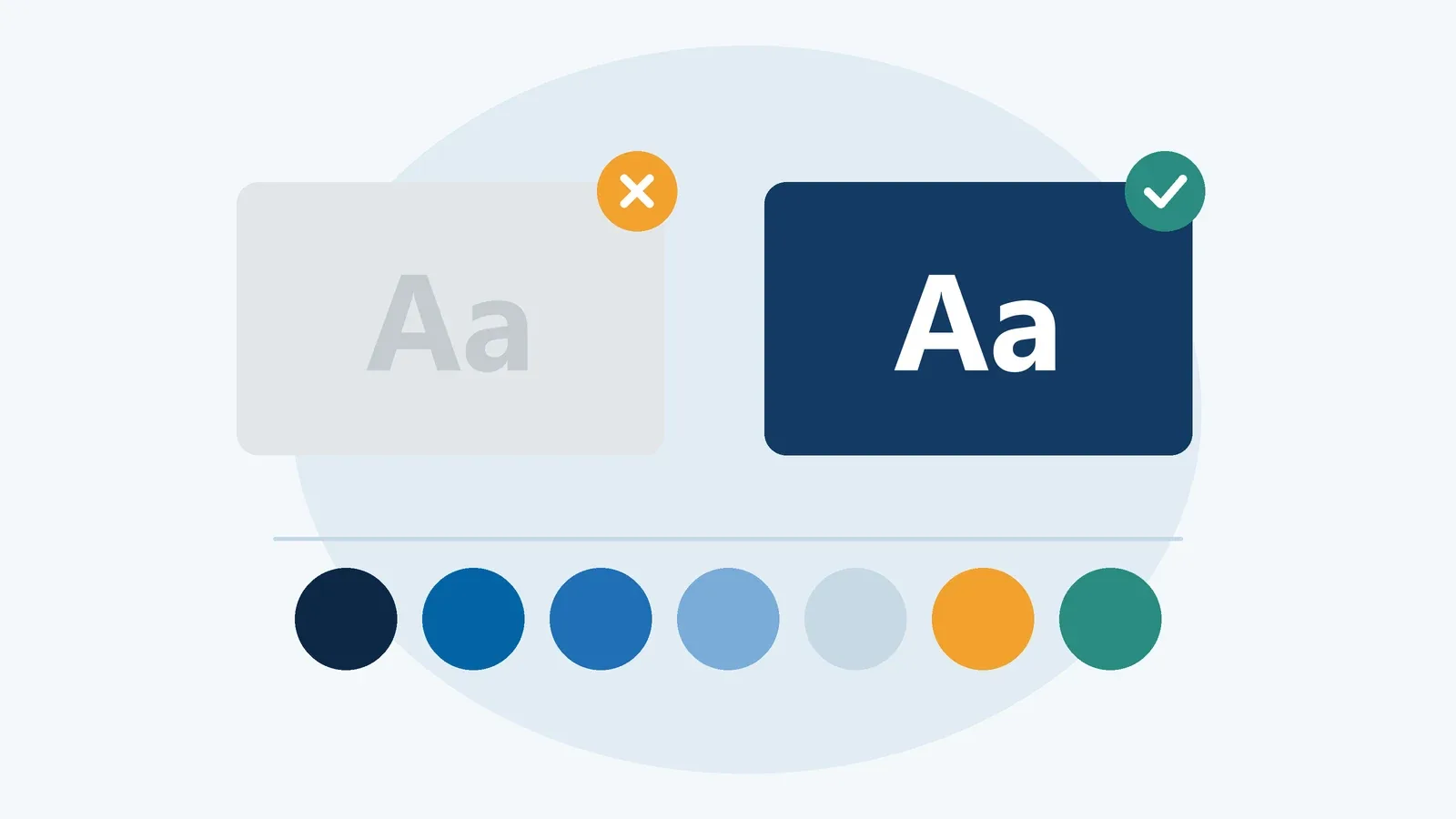
Light gray text on a white background looks sleek in a design tool. On a phone in bright sunlight, on an older laptop screen or for someone with low vision, it turns into guesswork. It’s no surprise that low text contrast has been the most common automatically detectable error in the annual WebAIM Million report for years running.
Color is the other half of the story. Around 8% of men and 0.5% of women of Northern European descent have some form of color vision deficiency. If a form error is only shown by a red border, or a chart only works if you can tell red from green, those users miss information everyone else takes for granted.
The good news: contrast and color are among the easiest accessibility topics to measure and solve systematically. This guide covers what WCAG actually requires, where teams typically trip up, which tools to use and how to build a palette that holds up in dark mode too.
What a contrast ratio actually measures
WCAG calculates contrast from the relative luminance of two colors. The result is a ratio between 1:1 (two identical colors) and 21:1 (black on white). What matters is the difference in lightness, not hue. A saturated red and a saturated green look very different, yet they can be almost equally light. For many people with color vision deficiency, they blend into one.
There’s no rounding. A ratio of 4.49:1 does not meet a 4.5:1 requirement. A well-known example is the gray #767676, which reaches about 4.54:1 on white and passes. The slightly lighter #777777 comes in at roughly 4.48:1 and fails. You can’t see that difference with the naked eye, so measure instead of eyeballing it.
The two numbers to remember: 4.5:1 and 3:1
Text contrast
Success criterion 1.4.3 Contrast (Minimum) at level AA requires a contrast ratio of at least 4.5:1 between regular text and its background. Large text only needs 3:1. Text counts as large from 18 points (roughly 24 CSS pixels), or from 14 points if it’s bold (roughly 18.66 pixels). Logos, purely decorative text and text in disabled controls are exempt.
Simple enough, but the edge cases add up. Placeholder text inside input fields is still text and needs to meet the ratio. Text on photos or gradients has to pass at its worst spot, which often means adding a semi-transparent overlay behind it. And hover and focus states that change text or background color need checking just like the default state.
If you want to go further, aim for 1.4.6 Contrast (Enhanced) at level AAA: 7:1 for regular text and 4.5:1 for large text. For long-form reading, that’s a sensible target, even though European rules such as EN 301 549, the standard behind the European Accessibility Act, only point to level AA.
Non-text contrast: buttons, fields and icons
Since WCAG 2.1, 1.4.11 Non-text Contrast applies a 3:1 minimum to graphical elements as well, measured against adjacent colors. It covers any visual information needed to identify a control and its state, plus graphics that are required to understand the content.
In practice: if an input’s border is the only thing that tells you where the field is, that border needs 3:1 against the background. The same goes for a checkbox tick, an icon-only button, the lines in a chart and the focus indicator. The pale #e0e0e0 field border on white that shows up in so many design systems only reaches about 1.3:1, which is a clear fail.
A labeled button whose background barely stands out from the page can still pass, because the text already identifies it, as long as that text meets 4.5:1. A clearly visible button is still easier to find and more pleasant to use.
Never rely on color alone
1.4.1 Use of Color is a level A criterion, so it’s part of the absolute baseline. Color must not be the only visual means of conveying information, indicating an action or distinguishing an element. You’ll run into violations every day:
- Invalid form fields are marked with nothing but a red border.
- Links in body text differ from the surrounding text only by color.
- A status like “active”, “paused” or “failed” is shown as a colored dot and nothing else.
- Chart lines or map regions can only be matched through a color legend.
The fix is almost always a second layer: text, an icon, a pattern, an underline or a different shape. “Field outlined in red” becomes “field outlined in red, with a warning icon and the message ‘Enter a five-digit ZIP code’”. A red line and a green line become a solid line and a dashed line, each labeled directly at its end. For the full picture on error messages, read our guide to accessible forms.
For links in running text, an underline is the most robust solution. If your design drops it, the link color needs at least 3:1 against the surrounding text, and an extra cue such as an underline must appear on hover and focus. That’s allowed, but fragile: the same color also needs 4.5:1 against the background, and with dark body text you’ll rarely manage both.
/* Before: links identifiable by color only */
a {
  color: #0b6bcb;
  text-decoration: none;
}

/* After: keep the underline, just make it subtle */
a {
  color: #0b5cad;               /* approx. 6.7:1 on white */
  text-decoration: underline;
  text-decoration-thickness: 1px;
  text-underline-offset: 0.2em;
}
a:hover,
a:focus-visible {
  text-decoration-thickness: 2px;
}
Understanding color vision deficiency
The most common types affect the ability to tell red from green: protanopia, deuteranopia and their milder forms. Blue-yellow deficiency (tritanopia) is much rarer, and complete color blindness is very rare. Most people with a color vision deficiency don’t see in black and white; they perceive certain pairs of colors as similar or identical.
The main takeaway for design: combinations like red and green, green and brown, or blue and purple are risky as the only distinction. Traffic lights work reliably on the road because the position of each light carries meaning too. Interfaces usually lack that positional cue, so replace it with text or symbols.
Contrast helps here as well. When two colors differ clearly in lightness, almost everyone can tell them apart, whatever the hue. A quick trick is the grayscale test: convert your design to black and white. Anything that stops making sense needs an additional cue.
And color vision deficiency is only one group. High-contrast design also helps people with low vision, older users whose contrast sensitivity has declined and anyone squinting at a screen in direct sunlight. Good contrast isn’t a special accommodation for a few; it’s a quality standard for everyone.
Tools for everyday checks
Don’t judge contrast by feel. These tools have proven themselves in practice:
- WebAIM Contrast Checker: Enter two colors and read off the results for text and graphical elements. Perfect for quick spot checks.
- Colour Contrast Analyser (CCA) by TPGi: A free desktop app with an eyedropper that picks colors straight from your screen. Handy for text on images and for prototypes.
- Browser developer tools: Chrome and Edge show the contrast ratio in the color picker, and Firefox has an accessibility inspector with contrast checks. Chrome’s Rendering panel can also emulate different types of color vision deficiency.
- Automated scanners: axe DevTools, WAVE and Lighthouse flag low text contrast across a page. They struggle with text on images, gradients or semi-transparent layers.
- Design tool plugins: Figma and other tools have plugins that check contrast right in your mockups, so problems surface before they reach code.
Automated tools only catch part of the picture. Whether a chart still works without color, or whether a status also appears as text, is something you need to judge yourself. Our article on accessibility testing shows how to combine automated and manual checks.
Building an accessible palette
Instead of checking every color pair one by one, bake contrast into your design system. That way teams make good choices without measuring every time.
Scales, not single colors
Create a light-to-dark scale for each brand color, for example in ten steps. Check which contrast each step reaches on your backgrounds, then turn the results into simple rules such as “step 600 and darker works for text on white; step 400 and darker works for borders and icons.” Building the scale in a perceptual color space like OKLCH gives you more even lightness steps than HSL, where the same values look very different in yellow and blue.
Semantic tokens
Name colors by their job, not their appearance. A token like --color-text-muted should only ever hold a color that reaches 4.5:1 on every background it’s meant for. Nobody can accidentally use a too-light gray for body text if that gray simply isn’t in the token set.
:root {
  --color-bg: #ffffff;
  --color-text: #1f2328;          /* approx. 15.8:1 */
  --color-text-muted: #59636e;    /* approx. 6.1:1 */
  --color-border-input: #818b98;  /* approx. 3.5:1 */
  --color-link: #0b5cad;          /* approx. 6.7:1 */
  --color-danger: #b42318;        /* approx. 6.6:1 */
}
When brand colors don’t cooperate
Some brand colors, like a bright yellow or a fresh mid-green, will never reach 4.5:1 on white. That’s no reason to drop them. Use them for surfaces, accents or as backgrounds behind dark text, and define a darker variant of the same hue for text and controls. A yellow button with black text can have excellent contrast; yellow text on white never will.
Dark mode: check everything twice
Dark mode isn’t an inverted light mode. Every color pair has to meet the requirements in both themes, and what works on white can fail on dark gray. Saturated colors like a medium blue often look too dark on a dark background and need a lighter variant.
A few rules of thumb: many people find a very dark gray background more comfortable than pure black. Pure white on pure black can look blurry or seem to bleed for some people, for example those with astigmatism. Slightly softened white on dark gray still clears 4.5:1 by a wide margin. Shadows barely register on dark surfaces, so separate layers with lighter backgrounds or borders instead.
Technically, you reuse the same semantic tokens and assign new values per theme. The ratios below are measured against the dark background #16191d:
@media (prefers-color-scheme: dark) {
  :root {
    --color-bg: #16191d;
    --color-text: #e6e8eb;          /* approx. 14.4:1 */
    --color-text-muted: #a3acb6;    /* approx. 7.7:1 */
    --color-border-input: #7d8794;  /* approx. 4.8:1 */
    --color-link: #7cb7ff;          /* approx. 8.5:1 */
    --color-danger: #ff8a80;        /* approx. 7.7:1 */
  }
}

@media (forced-colors: active) {
  .status-badge {
    border: 1px solid CanvasText;
  }
}
The second block targets forced colors mode, such as Windows contrast themes. In that mode the system replaces your colors with its own limited palette, and elements that are only visible through a background color tend to disappear. A border in the system color CanvasText keeps them visible. You can also use prefers-contrast: more to offer a stronger variant to people who have asked their operating system for more contrast.
Don’t forget focus, states and charts
Contrast doesn’t stop at text. The focus indicator that keyboard users rely on to know where they are must be clearly visible, which brings 2.4.7 Focus Visible and the non-text contrast rules of 1.4.11 into play. Our guide to keyboard and focus covers this in depth.
For states like “selected” or “active”, a subtle color shift is rarely enough. A selected tab should stand out with a bold underline or heavier font weight, not just a slightly different shade of blue. The same applies to toggle switches: an icon or the position of the knob makes the state unambiguous.
Charts benefit from direct labels instead of legends, from different line styles and marker shapes, and from colors that differ clearly in lightness. A data table or a short text summary below the chart helps anyone who can’t take in the graphic, and anyone who simply doesn’t have time to interpret it.
Checklist
- Regular text reaches at least 4.5:1 and large text at least 3:1, including placeholders and hover and focus states.
- Input borders, icon-only buttons, checkbox ticks and focus indicators reach at least 3:1.
- No information relies on color alone; errors, statuses and chart series have a second cue.
- Links in body text are underlined or otherwise unmistakable.
- Text on images is readable at its worst spot, with an overlay if needed.
- Your palette is set up as scales with documented contrast ratios and semantic tokens.
- Dark mode and forced colors mode have been tested separately.
- The design still makes sense in grayscale.
Conclusion
Color and contrast are a rewarding place to start: the requirements are measurable, the tools are free and the fixes are often unglamorous. A slightly darker gray, an underline, an icon next to an error message – small decisions like these are the difference between “looks good” and “works for everyone”.
You’ll get the most out of it by building contrast into your palette and tokens from day one instead of checking at the end. Then nobody has to wonder whether a gray is dark enough, because the system only offers colors that work. For every criterion in detail, head to the WCAG guide.
Sources
- W3C: Web Content Accessibility Guidelines (WCAG) 2.2 (opens in a new tab)
- W3C: Understanding Success Criterion 1.4.3 Contrast (Minimum) (opens in a new tab)
- W3C: Understanding Success Criterion 1.4.11 Non-text Contrast (opens in a new tab)
- WebAIM: Contrast Checker (opens in a new tab)
- WebAIM: The WebAIM Million (opens in a new tab)