
Keyboard and Focus: Making Your Website Work Without a Mouse
Not everyone uses a mouse. Learn how to make navigation, dialogs and custom components keyboard accessible, design a visible focus and use ARIA only where it actually helps.
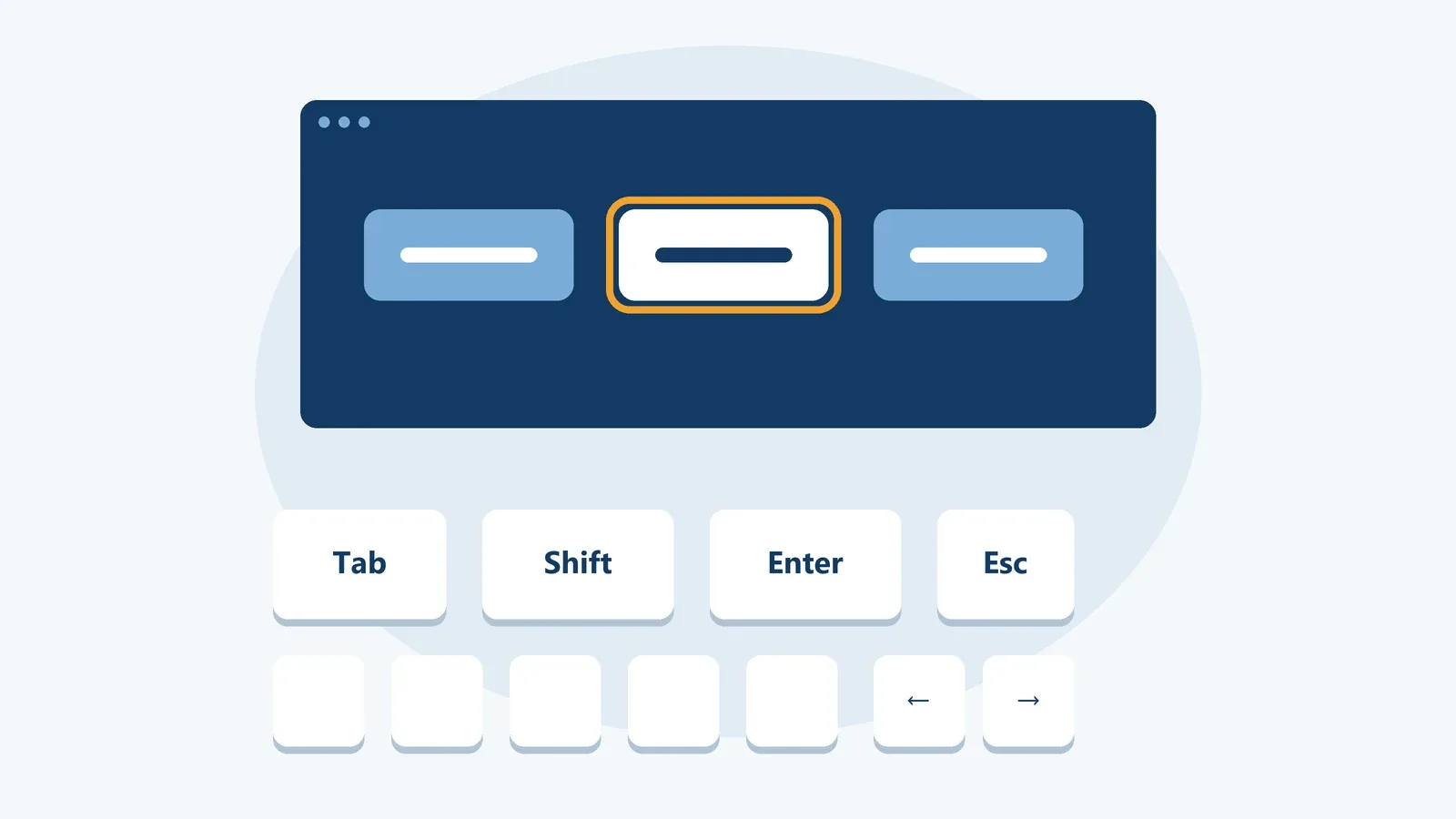
Put your mouse aside and try to place an order on your own website. It often takes just a few presses of the Tab key before something breaks: the focus is invisible, the menu only opens on hover, a cookie banner swallows every keystroke, or a dialog won’t let you out.
For many people, that’s not an experiment but everyday life. Blind people using a screen reader operate their computer with a keyboard. People with motor disabilities use keyboards, switches or voice control, all of which depend on solid keyboard support. Add power users who are simply faster without a mouse, and anyone whose trackpad has just given up. Our article on assistive technologies explains how these tools work in detail.
Keyboard accessibility is one of the foundations of accessible design. This guide covers what matters most: focus order, visible focus, skip links, keyboard traps, modal dialogs, custom components, and when ARIA helps versus when it does harm.
The ground rule: everything reachable, nothing trapped
Success criterion 2.1.1 Keyboard at level A requires that all functionality is operable through a keyboard, without needing specific timings between keystrokes. The only exceptions are functions where the path of movement itself matters, such as freehand drawing.
The keys people use to navigate the web are few:
- Tab and Shift + Tab move forward and backward between links, buttons and form fields.
- Enter follows a link or activates a button.
- Space activates buttons, toggles checkboxes and scrolls the page.
- Arrow keys move within radio groups, select lists, tabs and menus.
- Escape closes dialogs, menus and popovers.
Just as important is 2.1.2 No Keyboard Trap. If keyboard users can move focus into a component, they must be able to move it out again. Classic traps include embedded players, maps or rich text editors that capture every keystroke, and homemade dialogs that pull focus in but offer no way out. If leaving requires an unusual key, the page has to say so.
Keyboard shortcuts can backfire too. If an app reacts to single letters, say “s” for search, voice control users can trigger those actions by accident while dictating. Single-key shortcuts therefore need to be turned off or remapped by the user, or only be active while the relevant component has focus.
A logical focus order
According to 2.4.3 Focus Order, focus has to move in an order that preserves meaning and operability. Usually that means following the reading order: top to bottom, and left to right within rows in left-to-right languages.
Focus order follows the HTML source, not the visual layout. If you rearrange elements with CSS Grid, Flexbox, order or flex-direction: row-reverse, focus suddenly jumps all over the page. The fix is to put the HTML in the right order and use CSS for layout, not logic.
A common culprit behind chaotic focus order is the tabindex attribute. It’s worth knowing its three flavors:
tabindex="0"adds an element to the natural tab order. You only need it for custom interactive elements, which you rarely need in the first place.tabindex="-1"makes an element focusable via JavaScript without adding it to the tab order. Useful for headings, error summaries or dialog content you want to move focus to.- Positive values like
tabindex="3"force a custom order that almost never matches the rest of the page. Avoid them.
Content that isn’t currently visible shouldn’t receive focus either. A collapsed off-canvas menu whose links are still reachable with Tab leaves people navigating into nothing. hidden, display: none or the inert attribute reliably take such regions out of the tab order.
Visible focus
Keyboard users need to see where focus is at all times. That’s what 2.4.7 Focus Visible requires. Yet plenty of stylesheets still contain the line that removes the browser’s focus ring because it “looks odd” when clicking with a mouse.
The modern answer is the :focus-visible pseudo-class. Browsers apply it when a visible focus indicator makes sense, mainly during keyboard navigation, and skip it when someone clicks a button with the mouse. You get a strong focus style without anyone seeing rings on click.
/* Before: focus removed, keyboard users are lost */
*:focus {
  outline: none;
}

/* After: clear focus for keyboard navigation */
:focus-visible {
  outline: 3px solid #0b5cad;
  outline-offset: 2px;
}

/* Leave room for a sticky header when scrolling to focus */
html {
  scroll-padding-top: 5rem;
}
Prefer outline over relying on box-shadow alone. In forced colors mode, such as Windows contrast themes, shadows are removed while outlines remain visible. If your design alternates between light and dark backgrounds, a two-tone ring helps, for example a dark outline with a light shadow behind it. The indicator also needs enough contrast against its surroundings; see our guide to color and contrast.
WCAG 2.2 adds 2.4.11 Focus Not Obscured (Minimum) at level AA. A focused element must not be entirely hidden by content you’ve placed on the page, like a sticky header, a chat button or a cookie banner. The scroll-padding-top rule above tells current browsers to leave enough room below the header when scrolling a focused element into view. If you want to go further, 2.4.13 at level AAA sets precise requirements for the size and contrast of focus indicators.
Skip links: a shortcut to the content
Imagine having to tab through 40 header and navigation links on every single page before reaching the actual content. That’s the problem 2.4.1 Bypass Blocks addresses. The simplest solution is a skip link as the first element on the page that appears on the first press of Tab.
<body>
  <a class="skip-link" href="#main">Skip to main content</a>
  <header>…</header>
  <main id="main">…</main>
</body>

<style>
  .skip-link {
    position: absolute;
    left: 1rem;
    top: -10rem;
  }
  .skip-link:focus {
    top: 1rem;
  }
</style>
Don’t hide the link permanently; sighted keyboard users need to see it. Also check that activating it really moves focus and that the next Tab lands inside the content. Landmarks like header, nav, main and footer, along with a clean heading structure, help too, because screen reader users can jump straight between them.
Getting modal dialogs right
Modal dialogs are among the most common sources of keyboard problems. A good dialog moves focus inside when it opens, keeps it there while open, closes with Escape and returns focus to the element that opened it. Meanwhile, the rest of the page must be neither focusable nor reachable by screen readers.
That used to take a lot of JavaScript. Today, the native dialog element with showModal() handles most of it: it makes the background inert, moves focus into the dialog, closes on Escape, and current browsers restore focus when it closes.
<button type="button" id="open-newsletter">Subscribe to newsletter</button>

<dialog id="newsletter" aria-labelledby="newsletter-title">
  <h2 id="newsletter-title">Subscribe to our newsletter</h2>
  <!-- form fields -->
  <form method="dialog">
    <button>Close</button>
  </form>
</dialog>

<script>
  const dialog = document.getElementById("newsletter");
  document.getElementById("open-newsletter")
    .addEventListener("click", () => dialog.showModal());
</script>
Still test in the browsers your audience uses, and always include a visible close button. Not everyone knows that Escape works.
Custom components: HTML first, JavaScript second
Many keyboard issues come from interactive elements built out of div or span. A div with a click handler may look like a button, but it can’t be reached with Tab, ignores Enter and Space, and isn’t announced as a button by screen readers. Besides 2.1.1, that also fails 4.1.2 Name, Role, Value.
<!-- Before: looks like a button, isn’t one -->
<div class="btn" onclick="save()">Save</div>

<!-- After: focusable, with Enter and Space built in -->
<button type="button" onclick="save()">Save</button>
The rule of thumb is simple. If it takes you to another URL, it’s a link (a with href). If it does something on the current page, it’s a button. Both come with focus, keyboard support and the right role for free, and CSS can make them look however you like.
Complex widgets like tabs, tree views or comboboxes have no ready-made HTML element. For these, the WAI-ARIA Authoring Practices define which keys do what. With tabs, for instance, only the active tab is in the tab order, and you move between tabs with the arrow keys. This technique is called a roving tabindex: the active item gets tabindex="0", all others tabindex="-1". Before building one yourself, ask whether a simpler pattern would do, like a series of sections with headings instead of tabs.
ARIA: when it helps and when it hurts
ARIA adds roles, states and properties to HTML that tell assistive technologies what an element is and does. It doesn’t change behavior, though: role="button" doesn’t make a div focusable or keyboard operable. That’s why the first rule of ARIA use is: if a native HTML element with the semantics and behavior you need exists, use it.
The WAI-ARIA Authoring Practices put it bluntly: “No ARIA is better than bad ARIA.” Incorrect ARIA is worse than none, because it promises assistive technologies something the page doesn’t deliver. Typical mistakes include:
role="menu"on regular site navigation. This role announces an application-style menu with arrow key navigation, which most site navigations don’t provide.aria-hidden="true"on elements that are focusable or contain focusable content. Focus then lands on something that doesn’t exist for the screen reader.- An
aria-labelthat replaces the visible text without including it. Voice control users can no longer activate the element by saying its visible name. - Roles without the matching behavior, such as
role="tab"with no arrow key support.
Where ARIA really shines is in expressing states that HTML can’t. A button that shows and hides a section uses aria-expanded to say whether that section is open. aria-current="page" marks the current page in navigation, and live regions announce status messages.
<button type="button" aria-expanded="false" aria-controls="filters">
  Filters
</button>
<div id="filters" hidden>…</div>

<script>
  const toggle = document.querySelector("[aria-controls=filters]");
  const panel = document.getElementById("filters");
  toggle.addEventListener("click", () => {
    const isOpen = toggle.getAttribute("aria-expanded") === "true";
    toggle.setAttribute("aria-expanded", String(!isOpen));
    panel.hidden = isOpen;
  });
</script>
For simple disclosures that don’t need JavaScript, the native details and summary pair is often the better choice.
How to run a keyboard test
A keyboard test takes a few minutes and requires no software. On a Mac, first turn on keyboard navigation in System Settings, and in Safari enable the option to press Tab to highlight each item on a webpage. Then work through these steps:
- Load the page and press Tab. Does a skip link appear?
- Tab through the entire page. Is focus always visible and never hidden?
- Does the order follow the reading order, without jumps into invisible regions?
- Can you operate menus, disclosures, sliders and forms with Enter, Space and the arrow keys?
- Open every dialog: does focus move inside, does Escape close it, and does focus return afterwards?
- Can you get out of every embedded component?
After that, a pass with a screen reader tells you whether roles and states are announced correctly. Our quick screen reader test shows you how.
Checklist
- All functionality is reachable and operable with a keyboard.
- There are no keyboard traps, including in embedded content.
- Focus order follows the reading order; no positive
tabindexvalues. - Focus is always clearly visible and never covered by sticky elements.
- A skip link leads straight to the main content.
- Modal dialogs contain focus, close with Escape and return focus.
- Buttons are
buttonelements; links areaelements withhref. - ARIA is only used where HTML falls short, and always with full keyboard behavior.
Conclusion
Keyboard accessibility isn’t a niche topic. It’s the foundation that screen readers, voice control and switch access build on. Most problems disappear if you follow a handful of principles: use native elements, keep focus visible, get the order right in your HTML and build dialogs with dialog.
The best way to start is to test it yourself. Unplug your mouse for a day and use your product with the keyboard only. You’ll quickly find where things get stuck, and most fixes are smaller than you’d expect. Every criterion related to keyboard and focus is explained in detail in the WCAG guide.
Sources
- W3C: Web Content Accessibility Guidelines (WCAG) 2.2 (opens in a new tab)
- W3C WAI: ARIA Authoring Practices Guide (APG) (opens in a new tab)
- W3C: Using ARIA (opens in a new tab)
- W3C: Understanding Success Criterion 2.4.7 Focus Visible (opens in a new tab)
- WebAIM: Keyboard Accessibility (opens in a new tab)