
Assistive technologies: how disabled people use the web
Screen readers, magnifiers, voice control, switches: how disabled people actually use the web, and what that means for your design and your code.
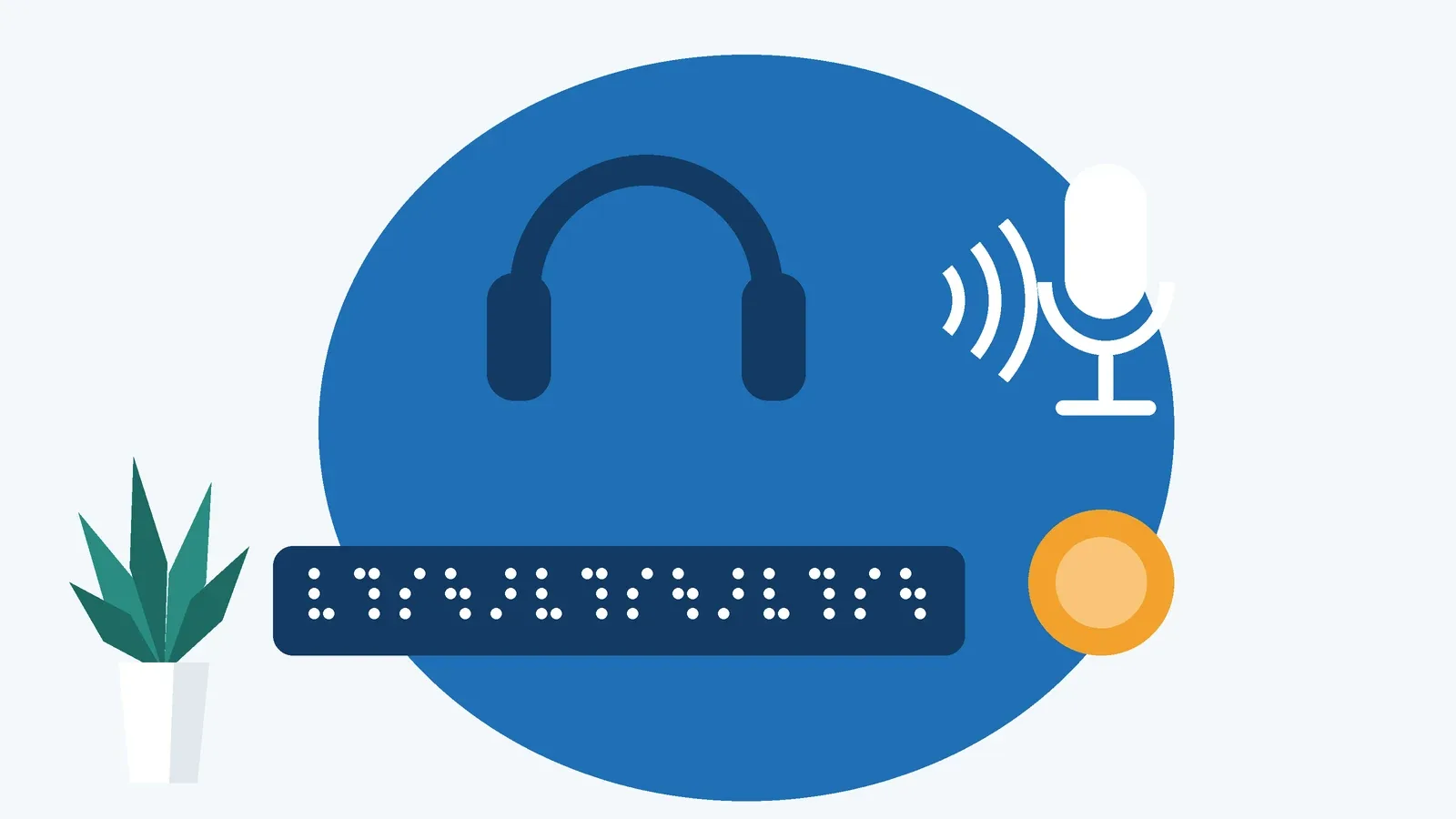
When we design and build websites, most of us picture the same thing: someone sitting in front of a screen, taking in the whole page at a glance and clicking through with a mouse or a finger. For a lot of people, using the web looks completely different. They listen to pages, read them with their fingertips, see only a small magnified section at a time or control everything with their voice.
Assistive technologies make that possible. They’re the bridge between a person and your interface. But that bridge only holds if your website provides the right information. A screen reader can’t announce a button that isn’t technically a button. Voice control can’t click an element whose name it doesn’t know.
In this article, you’ll get to know the most important assistive technologies, see how people use them in everyday life and get concrete guidance on what that means for design and code.
What assistive technologies are
Assistive technologies are hardware and software that help disabled people use devices and content. Some are standalone products, but many now come built into operating systems: VoiceOver on Apple devices, TalkBack on Android, Narrator and Magnifier on Windows.
Under the hood, most of these tools don’t read your HTML directly. The browser turns the DOM into what’s called the accessibility tree. For every relevant element, it records the role (button, link, heading, text field), the name (“Open cart”), the state (expanded, selected, disabled) and the value. Assistive technologies read that tree through the operating system’s accessibility APIs.
If you take away one thing from this article, make it this: whatever isn’t in the accessibility tree doesn’t exist for many assistive tools. That’s why 1.3.1 Info and Relationships and 4.1.2 Name, Role, Value require structure and meaning to be present in the code, not just on screen.
Screen readers: listening to the web
A screen reader reads out content and controls using synthesized speech. It’s used mainly by blind people, but also by people with severe low vision and some people with reading or learning disabilities. Well-known screen readers include NVDA (free and open source, Windows), JAWS (commercial, Windows), VoiceOver (macOS and iOS) and TalkBack (Android).
A common misconception is that screen reader users listen to every page from top to bottom. Experienced users jump around. In NVDA and JAWS, for example, pressing H moves to the next heading; VoiceOver offers the rotor for the same purpose. Users pull up lists of all links or headings, jump between page regions like navigation and main content, or move from one form field to the next.
Picture this: a blind user opens a recipe. She doesn’t want to hear the author’s life story, she wants the ingredients. If there’s a heading called “Ingredients”, she’s there in two keystrokes. If it’s just a bold paragraph, she has to listen her way through the entire text. Same content, completely different experience.
What this means for you: real headings in a logical hierarchy, landmarks such as header, nav, main and footer, descriptive link text, meaningful alt text for images and labels for every form field. Status messages like “Item added to cart” also need to be implemented so the screen reader picks them up without moving focus. To try one yourself, see our quick screen reader test.
Braille displays: reading the web by touch
A refreshable braille display is an output device that renders text in braille. Small pins move up and down to form characters you read with your fingers. Braille displays work together with a screen reader and show one line of text at a time. For deafblind people, they’re often the only way to access digital content, and many blind people use them too – for precise reading, for programming or in quiet settings.
In practice, this means anything you communicate as text has to be actual text. Text baked into images, ASCII art or meaning carried only by emoji either doesn’t reach a braille display at all or arrives garbled.
Magnification: seeing the web one section at a time
Many people with low vision don’t use a screen reader at all. They enlarge what’s on screen instead. Options range from browser zoom and larger system fonts to screen magnifiers like Windows Magnifier, Zoom on macOS and iOS or dedicated magnification software. Some combine magnification with inverted colors, custom color schemes or speech output.
At high magnification, a person only sees a small part of the page at any moment – a bit like looking through a keyhole. That has consequences. A success message that pops up in the top right corner while the person clicked “Save” in the bottom left simply goes unnoticed. A tooltip that disappears as soon as the mouse moves can’t be read.
That’s why 1.4.10 Reflow requires content to remain usable at a width of 320 CSS pixels without horizontal scrolling – the equivalent of 400 percent zoom in a 1280-pixel-wide window. Responsive layouts help enormously here. Also, place feedback close to the action that triggered it, and never assume people can see the whole page at once.
Forced color modes, such as Windows contrast themes, are a special case. They override your colors. Information conveyed only through background colors or background images can vanish, such as a focus indicator made of nothing but a colored box shadow.
Keyboard: the web without a mouse
The keyboard is the foundation for many other assistive tools. People with motor disabilities who can’t control a mouse precisely navigate with Tab, Shift+Tab, the arrow keys, Enter, Space and Escape. Screen reader users rely on the keyboard as well. And many switch and voice control setups ultimately simulate keyboard input.
Two core requirements follow from this. 2.1.1 Keyboard requires every function to work with a keyboard. 2.4.7 Focus Visible requires that you can always see where focus is. It sounds obvious, but it often breaks on the details: dropdowns that only open on hover, modal dialogs you can’t get out of, or a single line of outline: none in a stylesheet. Our article on keyboard access and focus goes deeper.
Voice control: using the web by speaking
With voice control, people operate their computer or phone through spoken commands. Common options include Dragon on Windows, Voice Control on macOS and iOS, and Voice Access on Android and Windows. Voice control is used, for example, by people with paralysis, muscular conditions, tremors or chronic pain in their hands and arms.
A typical command is “Click Submit”. The software then looks for an element whose accessible name contains “Submit”. Here’s a common trap: if the button visibly says “Submit” but the code says aria-label="Send form", voice control can’t find it. The person says what they see, and nothing happens.
That’s why 2.5.3 Label in Name requires the accessible name to include the visible text, ideally at the start. As a fallback, voice control software can overlay numbers or a grid on the page so people can pick elements that way. It works, but it’s slow and tiring. For icon-only buttons, a tooltip or a visible label helps people know what to say.
Switches, head pointers and eye tracking
Some people can only make a few, deliberate movements. They might use one or two large switches activated by hand, head, foot or a sip-and-puff tube. Switch Control on iOS and Switch Access on Android are examples. With scanning, a highlight moves from one element to the next across the screen, and pressing the switch selects whatever is highlighted.
Others move a pointer with head movements or with their eyes. With eye tracking, a click often happens by dwelling – looking at an element for a set amount of time.
What these methods have in common: every single action takes far more time and effort. A page with 40 navigation links before the main content starts becomes a test of patience when you’re scanning. Small targets crowded together are almost impossible to hit with a head pointer or eye tracking. What helps: a logical, short focus order, skip links to the main content, generously sized targets and no tight time limits.
Support for hearing, reading and understanding
Not every assistive technology is about vision or motor skills. People who are hard of hearing use hearing aids or cochlear implants, often connected directly to their phone, and depend on captions and transcripts for video. People with dyslexia or attention difficulties use text-to-speech, the browser’s reader mode or tools that adjust fonts, line spacing and colors.
All of these tools only work when content exists as real, well-structured text. A PDF made of scanned pages or an infographic without a text version leaves them with nothing to work with.
What this means for design and code
As different as these tools are, what they need from your website overlaps a lot. Most problems can be avoided with a few ground rules:
- Semantic HTML first: native elements such as
button,a,input,selectand headings come with roles, keyboard support and states built in. - Every control needs a name: visibly labeled, programmatically associated and matching the visible text.
- States must be exposed: expanded or collapsed, selected, required, invalid.
- DOM order must make sense: whatever you rearrange with CSS still follows source order for screen readers and keyboard users.
- Layouts must be flexible: zoom, larger text and narrow viewports shouldn’t cut off or overlap anything.
- Use ARIA deliberately: ARIA can fill gaps, but used wrongly it does more harm than good.
A classic example is the menu button in mobile navigation:
<!-- Before: not a button, no state -->
<div onclick="toggleMenu()">☰</div>

<!-- After: a real button with a name and a state -->
<button type="button" aria-expanded="false" aria-controls="main-menu">
  Menu
</button>
The “before” version is practically invisible to keyboard, screen reader and voice control users. At worst, a screen reader reads out a symbol name. The “after” version is announced as “Menu, button, collapsed”, can be reached with Tab, activated with Enter or Space and triggered by saying “Click Menu”. When the menu opens, your script sets aria-expanded to true.
One form, four perspectives
To see how differently the same barriers play out, take a realistic example: an online form for booking an appointment at a city office.
A blind user hears only “Edit text” on one field, because there’s no label – just placeholder text that disappears as soon as you type. A user with a screen magnifier clicks “Next” and doesn’t notice that an error message has appeared at the very top of the page. A voice control user can’t target the “Next” button because it’s just an arrow icon. And a switch user needs dozens of presses to pick a date in a custom calendar widget, because there’s no simple field to type the date into.
The fixes are the same ones that help everyone: visible, associated labels, error messages right next to the field with focus moved to the first error, buttons with text labels and a date input that works quickly with a keyboard.
Checklist
- Are headings, lists, landmarks and tables marked up correctly in the code?
- Does every control have an accessible name that includes its visible text?
- Can everything be reached and operated by keyboard, with visible focus?
- Does the page stay usable at 400 percent zoom without horizontal scrolling?
- Does feedback appear close to the action, and do screen readers announce it?
- Are targets large enough and not crammed together?
- Do focus indicators and icons still work in forced color modes?
- Have you tested your key user journeys with a screen reader at least once?
Conclusion
Assistive technologies are as diverse as the people who use them. Screen readers, braille displays, magnifiers, voice control and switches work in very different ways, yet they ask surprisingly similar things of your website: clean semantics, clear names, exposed states, a logical order and flexible layouts.
The best way to internalize this is to try it. Turn on your system’s screen reader, spend fifteen minutes navigating with the keyboard only or control a page with your voice. You’ll start noticing barriers in a different way – and avoiding them while you’re still designing.
Sources
- W3C WAI: How People with Disabilities Use the Web (opens in a new tab)
- W3C: Web Content Accessibility Guidelines (WCAG) 2.2 (opens in a new tab)
- MDN Web Docs: Accessibility tree (opens in a new tab)
- NV Access: NVDA screen reader (opens in a new tab)
- Apple Support: VoiceOver User Guide for Mac (opens in a new tab)